



Every week, brand managers should review account health, sales and traffic, inventory, pricing and listings, advertising, customer experience, and any payment exceptions.
At beBOLD Digital, we suggest using your review to answer three questions: What changed? What needs action? Who is responsible for the next step?
Checking your account daily helps you catch urgent problems. Weekly reviews help you make decisions about stock, spending, and profits. Our Amazon account management services help brands coordinate these tasks.
What Is the Amazon Seller Dashboard?
The Amazon seller dashboard is the workspace within Amazon Seller Central where sellers monitor and manage sales, listings, inventory, orders, payments, and account performance.
Seller Central contains several dashboards, reports, and tools. Its homepage provides an overview, while areas such as Account Health and Business Reports support more detailed checks. Available features depend on your selling plan, permissions, and program eligibility.
Your Daily and Weekly Amazon Seller Central Checklist

Set how often you review based on urgency. Shipping deadlines or selling restrictions need quick attention, while sales trends need regular comparison and investigation.
We recommend a weekly Seller Central checklist that includes daily checks for urgent issues and a deeper management review. Add monthly financial checks and planning. Monitor more often during launches, promotions, or when there are account problems.
Daily Checklist: What to Check on the Amazon Seller Dashboard Each Day
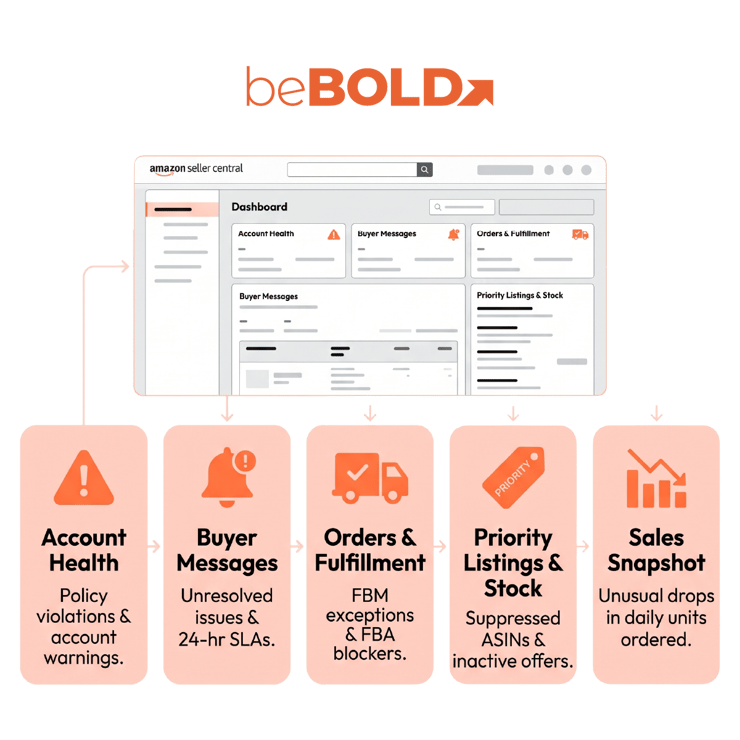
Check daily for selling interruptions and customer issues. Assign these checks to the right people and make sure each urgent issue has someone responsible and a clear next step.
Account Health and Performance Notifications: Are There New Alerts?
Check for new policy violations, account warnings, affected ASINs, and what actions are needed. Note the deadline and assign someone to handle it. Follow the instructions in each notice and escalate selling restrictions right away instead of waiting for the weekly review.
Buyer Messages: Does Any Customer Need a Response?
Look for order questions and any unresolved issues. Make sure your customer service person responds quickly using Amazon’s approved channels. Save repeated issues for the weekly review, but handle individual customer needs right away.
Orders and Fulfillment: Are Any Orders at Risk?
For Fulfilled by Merchant (FBM) offers, inspect unshipped orders and shipping or cancellation exceptions. For Fulfillment by Amazon (FBA), identify fulfillment issues that require seller action. Route each problem to the appropriate owner.
Priority Listings and Stock: Can Customers Still Buy?
Review promoted and fast-selling ASINs for suppressed listings, inactive offers, unexpected changes, and urgent stock alerts. Send selling blockers and urgent availability issues to your operations, inventory, or advertising lead.
Sales Snapshot: Is There an Unusual Drop Worth Investigating?
Look at sales and units ordered for any unexpected changes. Check for simple reasons, like stockouts or unavailable offers. Think about reporting delays and normal daily changes before making quick campaign or listing updates.
Weekly Checklist: What Brand Managers Should Review in Seller Central Each Week
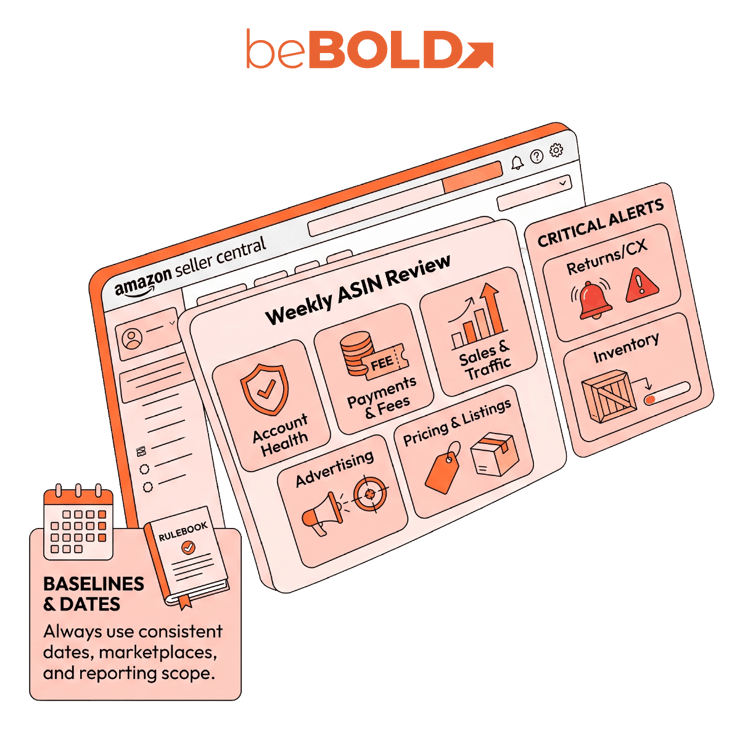
Begin your weekly review by seeing if past actions were successful. Next, look into any changes and make decisions, using Seller Central for account tasks and the Amazon Ads console for advertising.
1. Start With Consistent Dates and Priority ASINs
Compare the last completed seven-day period with the previous equivalent period. Check a longer baseline to distinguish a developing trend from a temporary change.
Make sure you use the same marketplace, reporting scope, and date settings each time. Keep track of promotions, price changes, stockouts, and new launches.
Focus on products that drive revenue, advertised ASINs, new launches, and any flagged issues. Remember to include child variations, since good totals for a product line can hide problems with a top-selling size. Review last week’s action log.
2. Account Health: Are Any Risks or Deadlines Still Open?
Daily checks help you spot new warnings. In your weekly review, ask why some issues are still open and if the same problems keep coming back.
Review:
-
Open violations and affected ASINs.
-
Case progress, outstanding evidence, and response deadlines.
-
Applicable fulfillment metrics, such as order defects, late shipments, cancellations, and tracking performance.
Make sure each issue has someone responsible and a clear next step. If a shipping problem keeps happening in the warehouse, fix the process there. Just opening a support case won’t solve the real problem.
Always handle urgent deadlines before sticking to your meeting schedule.
3. Sales and Traffic: Which ASINs Changed, and What Might Explain It?
Review Ordered Product Sales, Units Ordered, Sessions, Unit Session Percentage, and Featured Offer percentage where available.
Unit Session Percentage equals units ordered divided by sessions, expressed as a percentage. It measures units relative to visits, rather than the percentage of individual shoppers who purchased.
Use the metrics together:
|
Finding |
Next investigation |
|
Sessions fell |
Check visibility, advertising delivery, and availability. |
|
Sessions held steady; Unit Session Percentage fell |
Check offer availability, price, delivery promises, and listing changes. |
|
Account sales held steady; a child ASIN declined |
Inspect that size, shade, or formulation separately. |
These are investigation prompts, not proven causes. Compare against the ASIN’s history before choosing a fix. Our Amazon sales-report guide explains the reporting tools in more detail.
4. Inventory: Can Available Stock Support the Next Few Weeks?
Review sellable, reserved, inbound, stranded, and aging FBA inventory. For FBM products, check warehouse availability and stock accuracy.
Compare your supply to expected demand, how long it takes to restock, receiving time, and a suitable buffer for your brand. Remember, incoming stock might not arrive in time for your next promotion.
Decide whether to:
-
Replenish a priority ASIN.
-
Resolve stranded inventory.
-
Investigate slow-moving stock.
-
Adjust promotion or advertising plans.
Our K18 case study shows how we avoided running out of stock during busy times as demand grew. We suggest planning your stock together with your marketing plans before increasing traffic. For more details, check our inventory-management guide.
5. Pricing and Listings: Can Customers Buy the Correct Offer?
Review Pricing Health, inactive or suppressed listings, Featured Offer eligibility, prices, coupons, and delivery promises. Spot-check priority detail pages for correct sizes, packaging, and variation relationships.
For example, in one of our premium beauty case studies, we documented incorrect titles and sizes, outdated packaging images, and competing sellers discounting products. This is why for your weekly review, we recommend checking what customers actually see before assuming weak performance is an advertising issue.
Give ongoing catalog or offer issues to the right specialist. If a problem needs a deeper look, escalate it for an Amazon listing audit. Only rewrite content when there’s clear evidence for a change. Weekly checks don’t mean you need to rewrite every week.
6. Advertising: Is Spend Supporting Products You Can Sell Profitably?
In the Amazon Ads console, compare your spending, attributed sales, and efficiency to your campaign goals. Make sure your budgets support products that are available and have good margins.
Recent sales numbers can change as more conversions come in during the lookback window. Don’t pause targets just because the week isn’t finished and results look low.
In our Henkel Professional Beauty case study, we combined advertising optimization with organic content improvements and profitability tracking.
We suggest checking ad efficiency together with total sales and product profits. A lower advertising cost of sales doesn’t always mean higher profit. Use our Amazon PPC-audit guide if you need to look deeper into your campaigns.
7. Returns and Customer Experience: Are Complaints Revealing a Pattern?
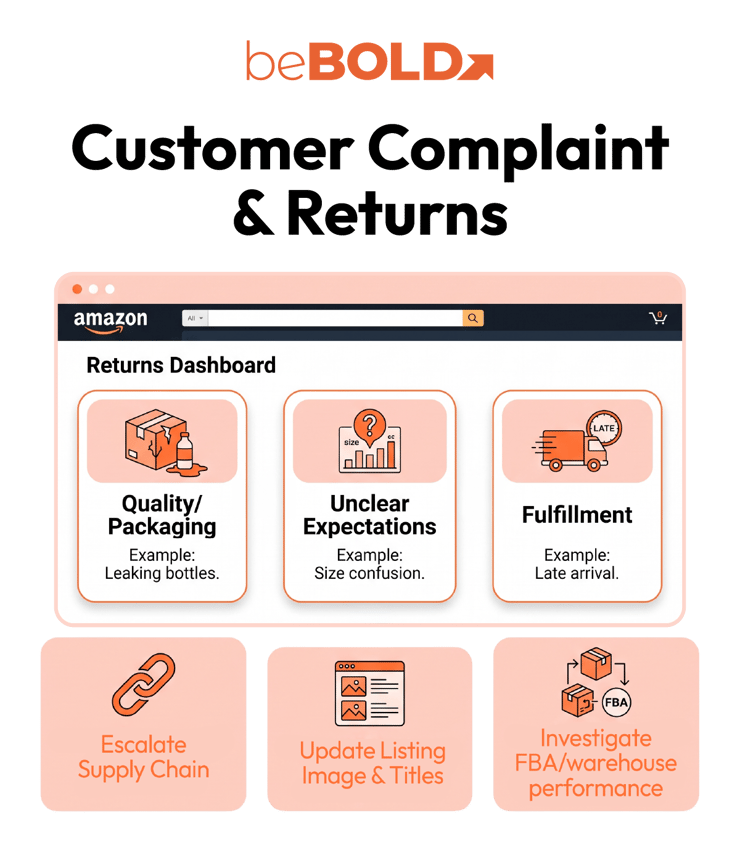
Review return reasons, refunds, seller feedback, and available Voice of the Customer insights.
Sort repeated complaints by likely cause, such as product quality, packaging, unclear expectations, or fulfillment. For example, if you get several reports of leaking skincare bottles, check the packaging. If customers are confused about sizes, update your images.
Give the investigation to the team that can fix the issue. Look at how often it happens and the history before making a decision. Respond to individual customer messages quickly as part of your daily routine.
8. Payments and Fees: Are Any Exceptions Affecting Cash or Margin?
Check your available funds, payouts, refunds, unexpected charges, and any fee changes. If you find differences, flag them for your finance team with transaction details and reports.
Remember, a payout isn’t the same as profit. To figure out your margin, include product costs, advertising, logistics, returns, and other expenses that might not show up in the payment statement.
At beBOLD Digital, we suggest keeping cash-timing questions separate from profitability questions. Delays in payments and higher fulfillment costs need different types of investigation. Weekly exception checks help finance spot issues early, but they don’t replace full reconciliation.
Turn the Review Into an Action List Your Team Can Own

Focus first on urgent selling risks, upcoming stock problems, and major performance changes. Write down each action and check the result before marking it as done.
Use this template with a hypothetical beauty example:
|
Action-log field |
Example entry |
|
ASIN/account area |
Promoted skincare variation |
|
Finding |
Stock may run out before replenishment |
|
Evidence |
Sellable units, demand forecast, receiving estimate |
|
Priority |
High |
|
Action |
Confirm replenishment; adjust promotion and ad plans |
|
Owner |
Supply-chain lead; advertising lead owns spend changes |
|
Deadline |
Before the planned budget increase |
|
Verification measure |
Confirm stock availability and revised spending |
Next week, check if each action was completed and what happened. Updating a forecast doesn’t mean stock has arrived. Changing a budget doesn’t mean the product is still available. Each person responsible should confirm the original risk is solved.
Make Weekly Account Reviews Easier to Act On
When different teams handle account operations, inventory, advertising, and finance, a clear review process helps everyone focus on the same priorities.
beBOLD Digital’s Amazon account management brings these responsibilities together, and our reporting and analytics help you see your performance clearly. If your reviews find problems but actions aren’t assigned, reach out to our team for help coordinating decisions and follow-up.

Frequently Asked Questions
Should Brand Managers Review Every ASIN Every Week?
Look closely at your priority ASINs and watch for exceptions across your whole catalog. Rotate in-depth reviews for the rest of your catalog based on size, importance, and risk. Pay extra attention to new launches and active problems.
What if Seller Central and Amazon Ads Show Different Sales Figures?
Check your reporting scope, attribution rules, date settings, and timing. Seller Central business reports and advertising-attributed sales track different things, so even if the dates match, the totals might not.
Can an External Dashboard Replace Seller Central Checks?
An external dashboard can bring reports together and highlight exceptions. But your team still needs Amazon’s tools to read notices, manage cases, and fix problems.
How Can I Access My Amazon Seller Dashboard?
Log in to Amazon Seller Central with your credentials or assigned user access. Choose the right marketplace and make sure you have permission to see the tools you need.
How Can I Monitor Sales Performance on the Amazon Seller Dashboard?
Use the Sales Dashboard and Business Reports for your selected period. Compare account totals and individual ASIN results, then investigate changes in traffic, units ordered, and offer availability.
How Can I Contact Amazon Seller Support for Dashboard Help?
Use Seller Central’s Help and support options. Prepare affected ASINs, report names, date ranges, screenshots, and existing case IDs. Describe the problem and requested resolution clearly.








Comments